Why SPF, DKIM, and DMARC matter for email deliverability
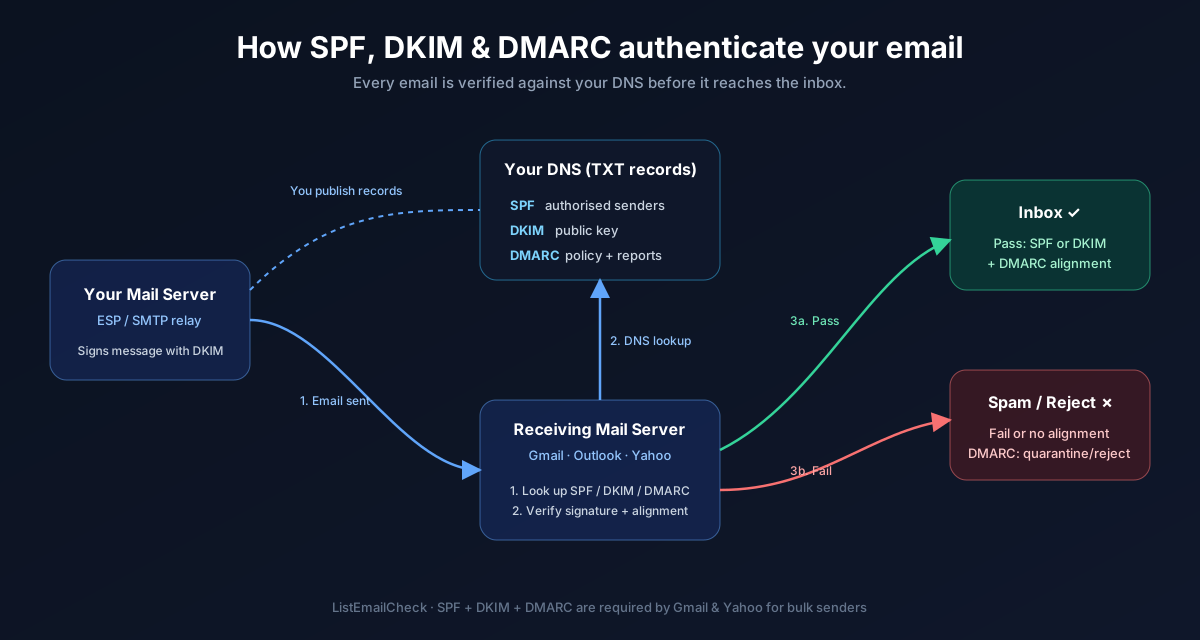
When you send an email, the receiving mail server has no way to know whether it actually came from you — unless you've published authentication records in your DNS. Without them, inbox providers like Gmail, Outlook, and Yahoo treat your emails as unverified and are far more likely to route them to spam or reject them entirely.
Since February 2024, Google and Yahoo require SPF, DKIM, and DMARC for senders who send more than 5,000 emails/day to their users. But even for smaller senders, missing any of these records measurably harms deliverability.
If you are starting from the bigger picture, pair this setup guide with what email deliverability is and how to prevent cold email bounces so your infrastructure work lines up with list-quality basics.
What each record does
- SPF (Sender Policy Framework) — a DNS TXT record that lists which IP addresses and mail servers are authorised to send email on behalf of your domain. If a server not on the list sends from your domain, the receiving server can reject it.
- DKIM (DomainKeys Identified Mail) — adds a cryptographic signature to every outgoing email. The receiving server uses a public key published in your DNS to verify the signature hasn't been tampered with in transit.
- DMARC (Domain-based Message Authentication, Reporting & Conformance) — a policy record that tells receiving servers what to do when an email fails SPF or DKIM (monitor, quarantine, or reject), and where to send failure reports.
All three work together. DMARC is only effective if SPF and/or DKIM are already in place.
Step 1 — Set up SPF
Log in to your domain registrar or DNS provider (Cloudflare, GoDaddy, Namecheap, etc.)
and create a TXT record for your root domain (@ or yourdomain.com).
A basic SPF record that authorises Google Workspace to send on your behalf looks like this:
v=spf1 include:_spf.google.com ~allIf you also use a transactional email service like SendGrid, Mailgun, or Postmark, add their include as well:
v=spf1 include:_spf.google.com include:sendgrid.net ~allKey rules:
- A domain can only have one SPF TXT record. If you have multiple sending services, combine them in a single record.
- The
~allsuffix is a "soft fail" — recommended to start with. Switch to-all(hard fail) once you're confident all your senders are listed. - SPF has a maximum of 10 DNS lookups. If you include too many services, use an SPF flattening tool.
Step 2 — Set up DKIM
DKIM setup is done through your email sending platform, not your DNS directly — the platform generates a key pair and gives you a DNS record to publish.
Google Workspace
- Go to Admin Console → Apps → Google Workspace → Gmail → Authenticate email
- Select your domain and click Generate New Record
- Copy the TXT record value and publish it in your DNS under the hostname shown (e.g.
google._domainkey.yourdomain.com) - Wait for DNS propagation (up to 48 hours), then click Start Authentication
SendGrid / Mailgun / Postmark
Each platform has a "Domain Authentication" or "Sending Domains" section in their dashboard. They'll provide two or three CNAME records to add to your DNS. Once added and verified, DKIM is automatically applied to all outgoing messages.
Use a key length of 2048 bits if your platform gives you the option — it's more secure than the older 1024-bit keys.
Step 3 — Set up DMARC
DMARC is a TXT record published at _dmarc.yourdomain.com. Start with a
monitoring-only policy so you can collect data before enforcing anything:
v=DMARC1; p=none; rua=mailto:dmarc-reports@yourdomain.com
The rua tag is where aggregate reports get sent. You'll receive XML files from
inbox providers summarising how your emails are being handled. Use a free DMARC report
parser like dmarcian
or MXToolbox's DMARC analyzer
to read them in human-readable form.
After 2–4 weeks of monitoring with no issues, tighten your policy:
p=quarantine— failing emails go to spam (recommended intermediate step)p=reject— failing emails are blocked entirely (the goal for most domains)
A final, enforced DMARC record looks like:
v=DMARC1; p=reject; rua=mailto:dmarc-reports@yourdomain.com; pct=100Step 4 — Verify your setup for free
Use these free tools to confirm everything is correctly configured before you start sending:
- MXToolbox SPF Checker — validates your SPF record and catches syntax errors
- MXToolbox DKIM Checker — verifies your DKIM public key is published correctly
- MXToolbox DMARC Checker — validates your DMARC policy record
- Mail-Tester — send an email to their test address and get a full deliverability score including SPF, DKIM, and DMARC pass/fail
Common mistakes to avoid
-
Multiple SPF records — only one TXT record starting with
v=spf1is valid. Multiple records cause SPF to fail entirely. -
Setting DMARC to
p=rejectimmediately — without a monitoring period first, you risk blocking legitimate emails if any senders are missing from your SPF. - Not including all your sending services in SPF — if you send from a CRM, newsletter tool, and transactional mailer, all three need to be in your SPF record.
-
Forgetting subdomains — if you send from
mail.yourdomain.comor any subdomain used for cold outreach, set up SPF, DKIM, and DMARC on that subdomain separately.
Key takeaways
- SPF authorises which servers can send for your domain — one TXT record, all senders listed
- DKIM signs outgoing emails cryptographically — set up through your email platform's dashboard
- DMARC tells receivers what to do with failures — start with
p=none, enforce after monitoring - All three are required by Google and Yahoo for bulk senders as of 2024
- Verify your setup with MXToolbox and Mail-Tester before your first large send
- Once your authentication is correct, clean your list with the free ListEmailCheck bulk verifier to ensure your verified emails actually reach valid inboxes.